How to Create Viral Cinematic AI Stories with Gemini & Google Flow (Free Master Prompt)
Workflow Overview
Learn how to produce Hollywood-style cinematic AI short films and viral story videos using completely free AI tools. This guide shows how to run an all-in-one Master Prompt in Google Gemini to generate consistent 7-scene storyboards with matching image and video prompts, animate them using image-to-video in Google Flow AI, and maintain strict character consistency throughout your narrative.
Tools Used in This Tutorial
Try these tools to replicate the exact results
Google's flagship multimodal AI for deep reasoning, multimodal analysis, and content creation.
AI workflow orchestration and video timeline tools.
🛠️ Tools & Resources Used
- Google Gemini (LLM / Script & Prompt Engine) - Processes the comprehensive 7-scene cinematic Master Prompt to output synchronized, highly descriptive image and video prompts with embedded character locks.
- Google Flow AI (AI Image & Video Generator) - Generates photorealistic cinematic base images and animates them into 8-second video clips via the built-in animate feature using free daily credits.
- Video Editor (CapCut / Premiere / DaVinci) (Post-Production) - Sequences generated video clips, layers background music, sound effects, voiceovers, and exports the final film.
⏱️ Quick Workflow Summary
- Step 1: Run the 7-Scene Master Prompt in Google Gemini to generate paired image and video prompts.
- Step 2: Generate the Scene 1 cinematic base image in Google Flow AI.
- Step 3: Animate Scene 1 into an 8-second cinematic video using Google Flow AI.
- Step 4: Maintain character consistency across subsequent scenes using reference image chaining.
- Step 5: Download all generated video clips, sequence in your editor, and add sound design.
📝 Step-by-Step Tutorial
Step 1: Generate the 7-Scene Storyboard Prompts in Google Gemini [Timestamp: 02:05]
Open Google Gemini and paste the full Master Prompt provided below. In the placeholder sections, you can supply your initial reference concept or let Gemini automatically convert your creative seed into exactly 7 sequential scenes. Each scene delivers a detailed Image Prompt (defining framing, character traits, creature scales, and lighting) and a matching 7–8 second Video Prompt (specifying motion, camera moves, and audio cues).
Prompt / Settings:
# MASTER PROMPT — 7-SCENE CINEMATIC STORY FROM 7 REFERENCE IMAGE PROMPTS

You are an expert cinematic AI story and video prompt generator specializing in photorealistic fantasy, emotional survival stories, creature adventures, and highly consistent short-form cinematic storytelling.

I will provide exactly 7 REFERENCE IMAGE PROMPTS.

Your job is to transform those 7 reference image prompts into EXACTLY 7 connected cinematic scenes.

IMPORTANT:
The 7 reference image prompts are the visual foundation of the story. Preserve their characters, creature designs, environments, color palette, lighting, visual identity, and overall cinematic realism.

The final result must feel like ONE continuous cinematic short film, not seven unrelated clips.

==================================================
CORE OBJECTIVE
==================================================

Create exactly:

7 SCENES
+
7 IMAGE PROMPTS
+
7 VIDEO PROMPTS

Each scene must represent approximately 7–8 seconds of video.

Total story duration:
Approximately 49–56 seconds.

The story must preserve the SAME CORE STORY, EVENTS, EMOTIONAL ARC, ADVENTURE, CURIOSITY, and ENDING contained in the original story/reference material.

Do NOT create a different story.

Do NOT change the central relationship between the characters.

Do NOT replace the main creature.

Do NOT introduce a completely different plot.

Instead, intelligently compress the longer original story into exactly 7 cinematic scenes.

==================================================
STORY COMPRESSION RULE
==================================================

The original story may contain more than 7 story beats.

You must intelligently combine related story beats into the same 7–8 second scene.

For example:

- A chase + escape can happen within one scene.
- Birth aftermath + first emotional connection can happen within one scene.
- Growing up + bonding can be shown through a compact cinematic action.
- Village discovery + rejection can happen within one scene.
- Separation + passage of time + growth can be represented through a powerful visual transition.
- The final danger + creature's return + protection can be compressed into the final action sequence.

However:

IMPORTANT:
Compress the story.
Do NOT rewrite the story.

All major story events must remain recognizable.

==================================================
REFERENCE IMAGE RULE
==================================================

The 7 reference image prompts are numbered:

REFERENCE IMAGE 1
REFERENCE IMAGE 2
REFERENCE IMAGE 3
REFERENCE IMAGE 4
REFERENCE IMAGE 5
REFERENCE IMAGE 6
REFERENCE IMAGE 7

Each reference corresponds to one final scene:

REFERENCE 1 → SCENE 1
REFERENCE 2 → SCENE 2
REFERENCE 3 → SCENE 3
REFERENCE 4 → SCENE 4
REFERENCE 5 → SCENE 5
REFERENCE 6 → SCENE 6
REFERENCE 7 → SCENE 7

Do not arbitrarily change this mapping.

However, the VIDEO PROMPT must connect the visual content of each reference image to the larger story.

The reference image is the visual anchor.

The video prompt is the motion, action, emotion, camera movement, sound, and story progression.

==================================================
CHARACTER CONSISTENCY LOCK
==================================================

Before generating the 7 scenes, silently analyze all 7 reference prompts and identify every recurring character.

Create an internal continuity lock for:

- Face shape
- Facial proportions
- Skin tone
- Eye shape
- Eye color
- Hair color
- Hair length
- Hair texture
- Hairstyle
- Age
- Body proportions
- Clothing
- Clothing colors
- Boots
- Accessories
- Creature anatomy
- Creature colors
- Creature markings
- Horn shape
- Fin shape
- Spine pattern
- Eye shape and color
- Size progression
- Distinctive scars or markings
- Any unique visual features

Once established, NEVER randomly change them.

The same character must look like the same individual in every scene.

If a character ages, show believable natural aging rather than redesigning the character.

If the creature grows, preserve its identity while naturally increasing its size and anatomical proportions.

==================================================
CREATURE CONTINUITY
==================================================

If the story contains a creature that grows through different life stages:

Maintain the exact same visual identity across all ages.

Preserve:

- Eye color
- Eye shape
- Facial identity
- Signature forehead marking
- Main body color
- Secondary color
- Underside color
- Horn design
- Facial fins
- Dorsal spines
- Tail structure
- Overall anatomical identity

Only age, size, muscle mass, proportions, and physical maturity may change naturally.

Never create a completely different creature at a later age.

==================================================
ENVIRONMENT CONTINUITY
==================================================

Preserve the same story world throughout all scenes.

If the references establish:

- snowy mountains
- pine forests
- medieval stone cottages
- remote villages
- frozen valleys
- snowy trails
- mountain slopes

then maintain those environmental elements consistently.

The environment may change naturally as the story progresses, but it must still feel like the same geographic world.

Maintain recognizable:

- mountain shapes
- snow conditions
- forest types
- architecture
- weather
- seasonal atmosphere
- environmental color palette

Do not suddenly move the story to a visually unrelated location.

==================================================
COLOR GRADING & VISUAL STYLE LOCK
==================================================

Preserve the visual language established by the reference prompts.

Use:

- Photorealistic cinematic fantasy
- High-end film realism
- Natural skin texture
- Realistic fur
- Realistic creature scales
- Realistic snow
- Realistic fabric
- Realistic atmospheric depth
- Natural environmental lighting
- Cinematic depth of field
- Realistic shadows
- Realistic physical interaction

Maintain the same overall color grading.

For cold outdoor scenes:
Use restrained blue-gray winter tones, natural whites, subtle atmospheric haze, and realistic cold daylight.

For warm indoor scenes:
Use warm amber firelight mixed with soft natural window light.

Do NOT randomly change the color grade from scene to scene.

==================================================
CAMERA & CINEMATIC CONTINUITY
==================================================

Every scene must use cinematic camera language.

Possible camera movements include:

- Slow tracking shot
- Side tracking
- Low-angle shot
- Ground-level shot
- Medium-wide shot
- Gentle push-in
- Slow pull-back
- Over-the-shoulder shot
- Low creature-level perspective
- Wide establishing shot

Use camera movement only when it supports the story.

Do not overload a 7–8 second scene with too many camera changes.

Each scene should feel physically achievable by a real cinematic camera.

==================================================
7–8 SECOND RULE
==================================================

Every individual scene must be designed for approximately 7–8 seconds.

Because the duration is short:

- Keep the action focused.
- Use one main dramatic action.
- Avoid multiple unrelated actions.
- Avoid excessive dialogue.
- Avoid overly complicated choreography.
- Do not try to show an entire paragraph of action literally.

Use visual storytelling and efficient cinematic transitions to communicate multiple story beats when necessary.

==================================================
STORY CONTINUITY RULE
==================================================

The ending of one scene must naturally lead into the beginning of the next.

Use visual continuity such as:

- matching movement
- matching direction
- matching character position
- matching environment
- matching emotional state
- matching weather
- matching lighting
- matching action

Example:

SCENE 1:
Character is running toward the mountain cottage.

SCENE 2:
Begin with the same character arriving at the cottage.

Never make the viewer feel that the story suddenly jumped to an unrelated moment.

==================================================
ADVENTURE + CURIOSITY
==================================================

The story must maintain a strong sense of:

- Adventure
- Mystery
- Curiosity
- Emotional discovery
- Survival
- Wonder
- Protective family bond

Every scene should make the viewer curious about what happens next.

The first scene must establish immediate visual interest.

The middle scenes should progressively increase emotional and narrative curiosity.

The final scene must provide a satisfying emotional payoff.

==================================================
EMOTIONAL ARC
==================================================

Preserve the original emotional progression:

DANGER
→ SURVIVAL
→ DISCOVERY
→ MOTHERLY LOVE
→ GROWTH
→ REJECTION
→ SEPARATION
→ RETURN
→ PROTECTION
→ EMOTIONAL PAYOFF

Do not remove the emotional relationship between mother and daughter/creature.

==================================================
ACTION & PHYSICS
==================================================

All movement must be physically believable.

Use:

- believable character weight
- realistic snow compression
- realistic footsteps
- realistic creature movement
- realistic breathing
- realistic cloth movement
- realistic fur movement
- realistic scale movement
- realistic environmental interaction

Large creatures must move with believable mass and weight.

Snow must react naturally to footsteps and impacts.

Wolves must have realistic anatomy and movement.

No cartoon physics.

==================================================
DIALOGUE RULE
==================================================

Dialogue is optional.

Use dialogue only when it is important to the story.

If dialogue is used:

- Keep it extremely short.
- Make it emotionally meaningful.
- Ensure lip movement is natural.
- Do not overload a 7–8 second scene with dialogue.

Important emotional lines may be retained if they are essential to the original story, such as:

'You’re my daughter.'

'Leave this village, or we will kill you.'

'Go higher into the mountains. Stay safe.'

'You came back.'

Do not add unnecessary dialogue.

==================================================
SOUND DESIGN
==================================================

Each VIDEO PROMPT should include appropriate natural sound when useful.

Examples:

- Snow crunching
- Wind
- Wolf growls
- Heavy breathing
- Footsteps
- Fire crackling
- Baby creature sounds
- Soft chirps
- Village murmurs
- Wooden objects moving
- Distant mountain wind
- Creature roar

Use subtle cinematic background music only where appropriate.

Sound should support the emotion, not overpower the scene.

==================================================
SAFETY / VISUAL REALISM
==================================================

Keep the story cinematic and intense but non-graphic.

Do not include:

- Graphic blood
- Gore
- Explicit childbirth
- Graphic injuries
- Excessive violence
- Disfigurement

Threat and danger may be shown through:

- movement
- expressions
- growls
- defensive posture
- environmental tension
- implied danger

==================================================
IMAGE PROMPT REQUIREMENTS
==================================================

For every scene, create a detailed IMAGE PROMPT.

The image prompt must describe:

- Character appearance
- Character clothing
- Creature appearance
- Creature age/size
- Facial expression
- Pose
- Environment
- Weather
- Lighting
- Camera framing
- Composition
- Color palette
- Depth of field
- Cinematic realism

The image prompt must be suitable for generating the visual reference frame for that scene.

Do not describe motion extensively in the IMAGE PROMPT.

Focus primarily on the exact visual composition.

==================================================
VIDEO PROMPT REQUIREMENTS
==================================================

For every scene, create a separate VIDEO PROMPT.

The video prompt must describe:

- What happens during the 7–8 seconds
- Starting position
- Character movement
- Creature movement
- Facial emotion
- Camera movement
- Environmental movement
- Snow/wind/fog interaction
- Realistic physics
- Sound effects
- Optional short dialogue
- Ending position
- How the scene connects to the next scene

The video prompt must be written specifically for AI video generation.

Do not simply repeat the image prompt.

The IMAGE PROMPT describes what the frame looks like.

The VIDEO PROMPT describes what happens in the frame.

==================================================
SCENE STRUCTURE
==================================================

The final answer MUST contain exactly 7 scenes.

Use this exact structure:

SCENE 1 — [Short Cinematic Title]

IMAGE PROMPT:
[Detailed image-generation prompt]

VIDEO PROMPT:
[Detailed 7–8 second video-generation prompt]

--------------------------------------------------

SCENE 2 — [Short Cinematic Title]

IMAGE PROMPT:
[Detailed image-generation prompt]

VIDEO PROMPT:
[Detailed 7–8 second video-generation prompt]

--------------------------------------------------

SCENE 3 — [Short Cinematic Title]

IMAGE PROMPT:
[Detailed image-generation prompt]

VIDEO PROMPT:
[Detailed 7–8 second video-generation prompt]

--------------------------------------------------

SCENE 4 — [Short Cinematic Title]

IMAGE PROMPT:
[Detailed image-generation prompt]

VIDEO PROMPT:
[Detailed 7–8 second video-generation prompt]

--------------------------------------------------

SCENE 5 — [Short Cinematic Title]

IMAGE PROMPT:
[Detailed image-generation prompt]

VIDEO PROMPT:
[Detailed 7–8 second video-generation prompt]

--------------------------------------------------

SCENE 6 — [Short Cinematic Title]

IMAGE PROMPT:
[Detailed image-generation prompt]

VIDEO PROMPT:
[Detailed 7–8 second video-generation prompt]

--------------------------------------------------

SCENE 7 — [Short Cinematic Title]

IMAGE PROMPT:
[Detailed image-generation prompt]

VIDEO PROMPT:
[Detailed 7–8 second video-generation prompt]

==================================================
IMPORTANT OUTPUT RULES
==================================================

Output ONLY the 7 final scenes.

Do NOT provide:

- Story analysis
- Character analysis
- Explanation
- Summary
- Extra scenes
- Alternative versions
- Behind-the-scenes explanation
- More than 7 scenes
- Less than 7 scenes

Do not add a separate CHARACTER SHEET.

Do not add a separate STYLE SHEET.

All necessary character and style continuity information must be embedded directly inside the relevant IMAGE PROMPTS and VIDEO PROMPTS.

==================================================
FINAL STORY REQUIREMENT
==================================================

The final 7 scenes must feel like a condensed cinematic adaptation of the ORIGINAL STORY.

The story must remain recognizable from beginning to end.

Do not change:

- The central characters
- Their relationship
- The creature's identity
- The main conflict
- The emotional journey
- The separation
- The creature's growth
- The return
- The protection of the mother
- The emotional reunion

Compress the story intelligently into exactly 7 scenes.

Every scene must be visually powerful, emotionally meaningful, and connected to the next.

The final result should feel like a professional 49–56 second photorealistic cinematic fantasy short film.

==================================================
REFERENCE IMAGE PROMPTS
==================================================

REFERENCE IMAGE 1:
[PASTE YOUR REFERENCE IMAGE PROMPT 1 HERE]

REFERENCE IMAGE 2:
[PASTE YOUR REFERENCE IMAGE PROMPT 2 HERE]

REFERENCE IMAGE 3:
[PASTE YOUR REFERENCE IMAGE PROMPT 3 HERE]

REFERENCE IMAGE 4:
[PASTE YOUR REFERENCE IMAGE PROMPT 4 HERE]

REFERENCE IMAGE 5:
[PASTE YOUR REFERENCE IMAGE PROMPT 5 HERE]

REFERENCE IMAGE 6:
[PASTE YOUR REFERENCE IMAGE PROMPT 6 HERE]

REFERENCE IMAGE 7:
[PASTE YOUR REFERENCE IMAGE PROMPT 7 HERE]

==================================================
NOW GENERATE THE FINAL 7-SCENE STORY
==================================================

Follow every instruction above and output exactly 7 connected scenes, each containing:

1. IMAGE PROMPT
2. VIDEO PROMPT

Each scene must be approximately 7–8 seconds.

Preserve the original story, character identity, visual continuity, color grading, cinematic realism, adventure, curiosity, and emotional progression from beginning to end.
Step 2: Generate the Scene 1 Base Image in Google Flow AI [Timestamp: 03:06]
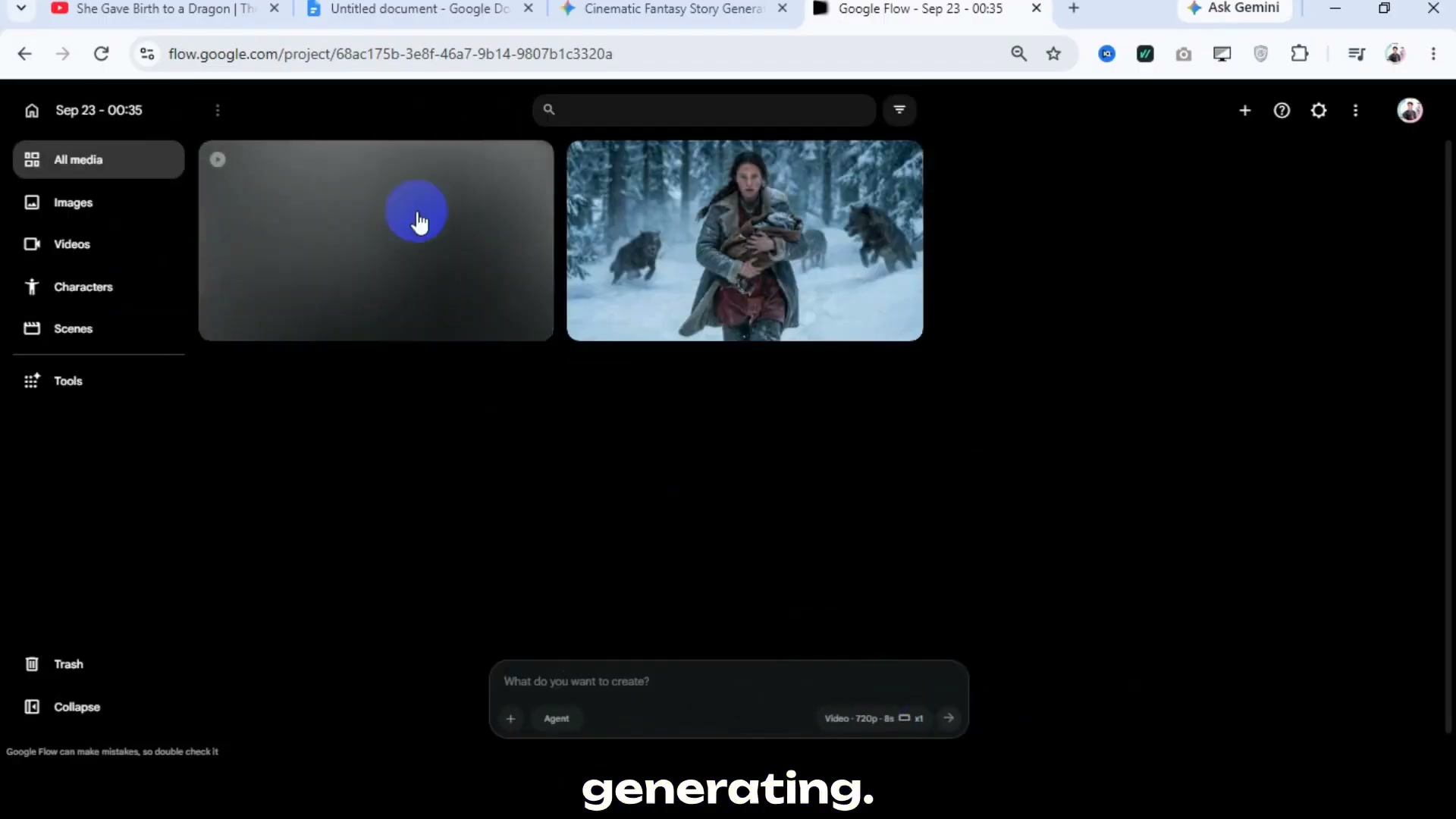
Copy the Scene 1 Image Prompt generated by Gemini. Head over to Google Flow AI and log in with your email account (which provides 50 free credits daily). Paste the copied text into the prompt box, select the image generation mode, and click the arrow button to render your first cinematic still.
Step 3: Animate the Scene 1 Image into an 8-Second Video [Timestamp: 04:11]
Above the generated Scene 1 image, click the three dots (...) and choose Animate. This places the image into the input field as your starting reference frame. Return to Google Gemini, copy the Scene 1 Video Prompt, paste it into the Google Flow AI prompt box, set video resolution to 720p with an 8-second duration, and click Generate.
Prompt / Settings:
Mode: Animate / Image-to-Video
Reference Frame: Scene 1 generated image
Resolution: 720p
Duration: 8 seconds
Video Prompt: [Generated Video Prompt for Scene 1 from Google Gemini]
Step 4: Lock Character Consistency Using Chained Image References [Timestamp: 09:35]
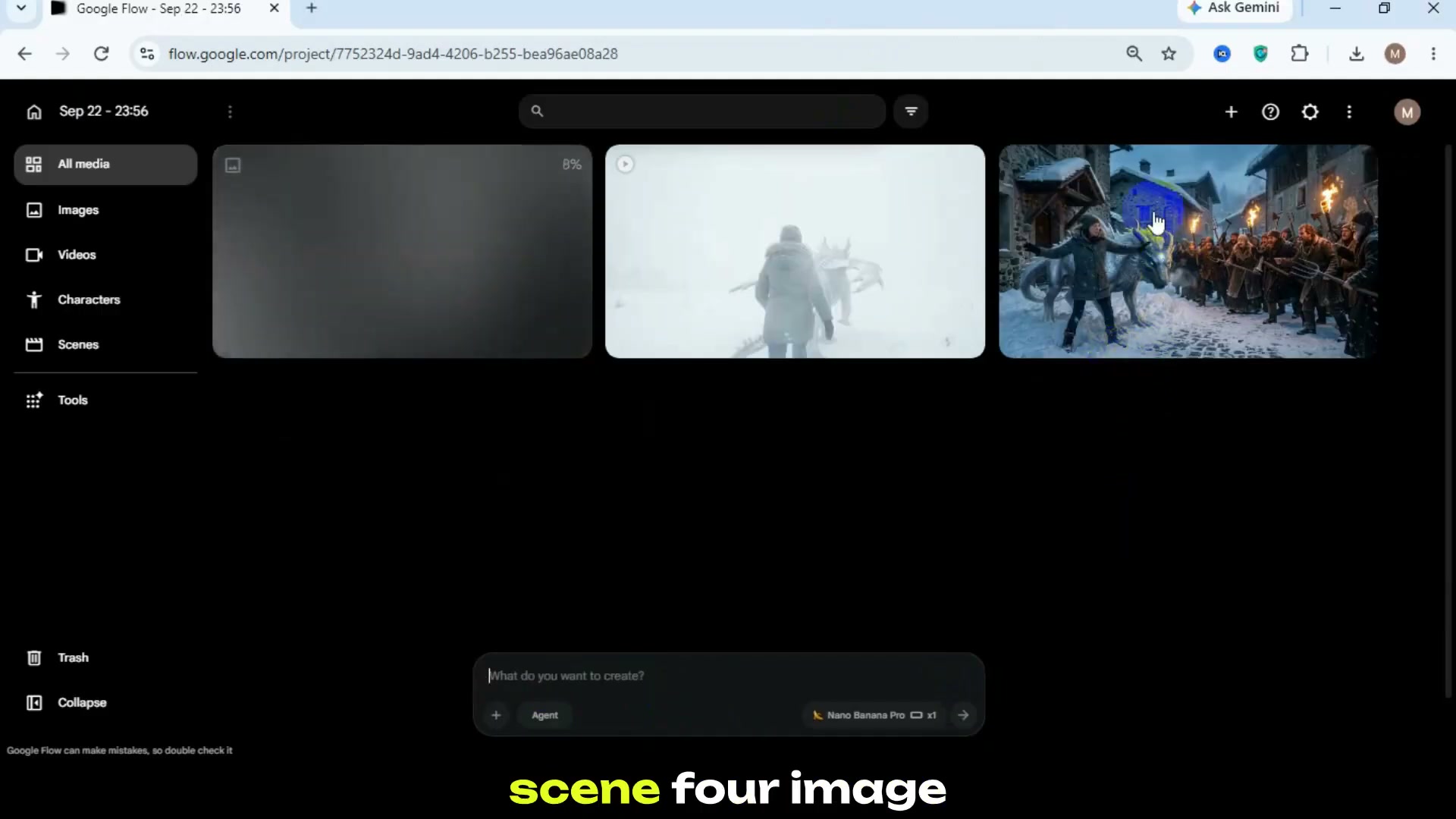
When generating subsequent scene stills (such as Scene 5 from Scene 4), maintain identical faces, attire, and creature features by clicking the three dots on the previous scene's image (Scene 4) and selecting Add to prompt. Then paste the new scene's Image Prompt (Scene 5) and generate. Google Flow AI will use the preceding still as a strict visual anchor while adapting the new pose and environment.
Step 5: Download and Assemble Clips in Your Video Editor [Timestamp: 11:14]
After generating all 7 video clips (switching to a second free account if you exhaust the initial 50 credits), click the three dots on each video to download in 720p. Import the clips into CapCut, Premiere Pro, or DaVinci Resolve. Arrange the 8-second scenes sequentially, align ambient environmental sound effects (crunching snow, wolf growls, crackling fire), add a cinematic score, and export the finished short film.
💡 Key Takeaways & Pro Tips
- Anchor Continuity with 'Add to Prompt': Rather than relying exclusively on text descriptions for character consistency, always feed the previous scene's image back into the prompt box via Add to prompt before generating the next still.
- Image-to-Video Over Text-to-Video: Direct text-to-video generation frequently suffers from character warping. Generating a high-fidelity image first and using the Animate feature produces superior cinematic realism and stable anatomy.
- Credit Optimization Workaround: Google Flow AI allocates 50 daily credits per account (allowing roughly 2–3 video generations). Logging into a secondary free account allows you to complete a 7-scene production without paying for a subscription.
📌 Original Source & Attribution
- Source Video: How to Create AI Videos for FREE in 2026 | Free Text to Video AI Generator
- Original URL: https://www.youtube.com/watch?v=AeiyP_sbFkU
- Credit: SADHON AI LAB


